Push an HTML Studio project to GitHub
GitHub Desk at github.registermysite.com takes an HTML Studio project id, imports the page, and pushes it into a repository you own.
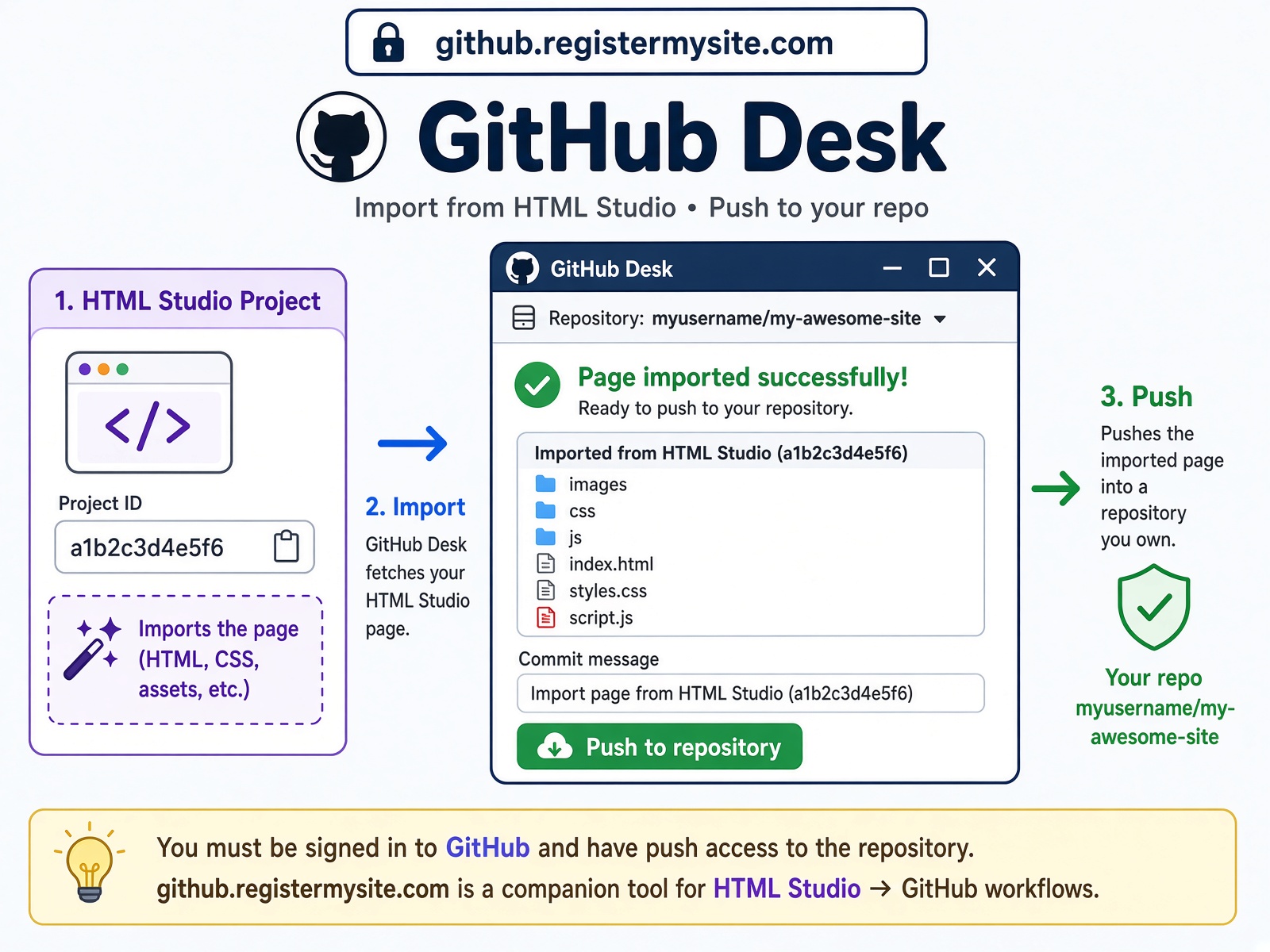
HTML Studio is where the page is built. GitHub is where the files should live if you want history, a backup, and a folder a static host already knows how to read. The connector is GitHub Desk at github.registermysite.com.
They are separate sign-ins. Studio does not become a GitHub account, and the desk does not become an editor. You sign in to the desk, link a GitHub account, then move a Studio project into a repository. From the desk you can create a new repo, push the project files, add a file, and delete a file.
This walkthrough uses the saved project named Tattoos. Its id is prj_muqfqjpg_2c33e2s4w6. The push landed in a public repo, RegisterMySite-com/tattoos-export.
What each side owns
| Place | Job | | --- | --- | | HTML Studio | Design the page. Save it so it has a project id. | | GitHub Desk | Import that id, hold a local folder, talk to GitHub after you link an account. | | GitHub | Store the repository, the commits, and the file history. |
A template sitting on the canvas is not a project yet. The desk cannot see it.
Get a project id
GitHub Desk does not browse your Studio projects. It asks for a project id.
Open the page in HTML Studio. Until you save it, the header says No project id. Open Settings, then Projects. Either create a project from the canvas, or click Edit on one you already saved. The header changes to ID plus the id.
Copy project id puts it on the clipboard. The GitHub Desk button in the Studio header shows the same id and can open the desk in a new tab. For Tattoos, that string is prj_muqfqjpg_2c33e2s4w6. Treat it like a handle, not a secret: anyone with the desk and the id can import the project into their own folder.
Save before you copy. An unsaved canvas has nothing for the desk to fetch.
Import into the desk
On github.registermysite.com, Import from Studio takes two fields: the HTML Studio project id, and a name for the local project folder. Importing Tattoos pulls the page into the desk. The files that come across are:
index.htmlREADME.mdllms.txtrobots.txtsitemap.xml
That set is what a static host expects from a finished page: the document, a short readme, and the crawl files. Images and extra pages come across when the Studio project actually has them. If a file only exists in the browser and was never saved, it will not be in this list.
The desk also has Import from GitHub, for the other direction, and a ZIP import. Studio is not the only way in. A repo you already have, or a zip from somewhere else, can become a desk folder too.
Create the repo and push
Link the GitHub account that should own the repository. This walkthrough uses @RegisterMySite-com. The desk account and the GitHub account are not the same login. Studio, the desk, and GitHub are three doors.
With the account linked, create a new repository and push the folder. The walkthrough creates a public repo named tattoos-export:
https://github.com/RegisterMySite-com/tattoos-export
The description on that repo is "HTML Studio export of the Tattoos project." The default branch is main. The file list matches the import: index.html, README.md, llms.txt, robots.txt, and sitemap.xml.
That push is the whole point. The Studio project is now a normal GitHub repo, with the page and the files a static host expects. Open the repository and confirm the list before you send the link to anyone else. A missed file is obvious on github.com and annoying to discover after a client has cloned it.
Name the repo like the site. tattoos-export is findable. export-3 is not, six months from now.
Add a file, and delete one
Inside the project folder you can add a file and delete one. The walkthrough adds walkthrough-note.md, then deletes it from the local project.
A local delete stays local until you push it. After that delete, walkthrough-note.md was still in the GitHub repo, because the removal had not been pushed. It is still there: the file table on tattoos-export lists it next to index.html. If the file should disappear from GitHub, push again after you delete it.
The same rule runs the other way. An add on the desk is a local file until the next push. GitHub does not watch the desk folder.
Keep the two stores separate in your head.
- Studio is the working copy of the page.
- The desk folder is the snapshot you are about to send.
- GitHub is the history, and it only moves when you push.
Deleting in one place does not delete in the others.
How the two apps fit
Build and edit the page in HTML Studio. When you want it in GitHub, copy the project id, import it on the desk, and create the repo.
Later changes can go back the other way. The desk can export a project to HTML Studio as well. A round trip looks like this:
- Edit in Studio. Save, so the project id still points at the new page.
- Import that id into the desk again when you want a fresh folder.
- Or import from GitHub when the repo is the copy you trust, and send that project back to Studio.
You do not need a terminal for the first push. You do need the project id, a linked GitHub account, and a second push any time a local delete should become a remote delete.
Before you call the export done
- The Studio header shows an id, not "No project id."
- Import from Studio listed the files you expected, not an empty folder.
- The GitHub file list matches the desk folder after the push.
- A file you deleted locally is either still on GitHub on purpose, or you pushed the removal.
- The repo is private if the page still has a client name, a phone number, or unfinished pricing.
tattoos-exportis public because this walkthrough is. - The repo lives on the GitHub account that should still own it next year.
The useful part is small. Studio designs the page. The desk asks GitHub for a repository. You keep the files, the commit, and a way to add or remove a file without standing up a server.
Put this on a real domain
Search a name, ship a static site, and wire business email without leaving RegisterMySite.
Comments
No approval queue. Be decent. 5 comments per visitor per post.